---
title: "The Easiest Way to Try MaxScale with your Java, Python, and Node.js Apps"
publish_date: 2024-10-09
author: "Alejandro Duarte"
channel:
- name: "Product"
url: "/ja/resources/blog/channel/product.md"
tags:
- name: "Community Server"
url: "/resources/blog/tag/community-server.md"
- name: "Enterprise Server"
url: "/resources/blog/tag/enterprise-server.md"
- name: "Java"
url: "/resources/blog/tag/java.md"
- name: "MaxScale"
url: "/resources/blog/tag/maxscale.md"
- name: "Node.js"
url: "/resources/blog/tag/node-js.md"
- name: "Python"
url: "/resources/blog/tag/python.md"
---
# The Easiest Way to Try MaxScale with your Java, Python, and Node.js Apps
Here’s the simplest method to integrate [MariaDB MaxScale](https://staging-mdb.com/products/maxscale/) into your Java, Python, and Node.js projects using [Canonical Multipass](https://multipass.run/). This guide provides a practical approach to deploying a robust MariaDB environment with MaxScale, using virtual machines on any operating system including Windows, Mac, and Linux. By using Multipass, you can bypass the complexity of traditional setups and quickly initiate multiple MariaDB [Community](https://staging-mdb.com/products/community-server/) or [Enterprise](https://staging-mdb.com/products/enterprise/) instances for development and testing, making it a great solution for developers who don’t want to fiddle with [Docker](https://dzone.com/articles/learn-database-read-write-splitting-using-your-bro) or physical machines (unless you are a [Raspberry Pi freak](https://programmingbrain.com/2022/07/building-kubernetes-cluster-on) like me).
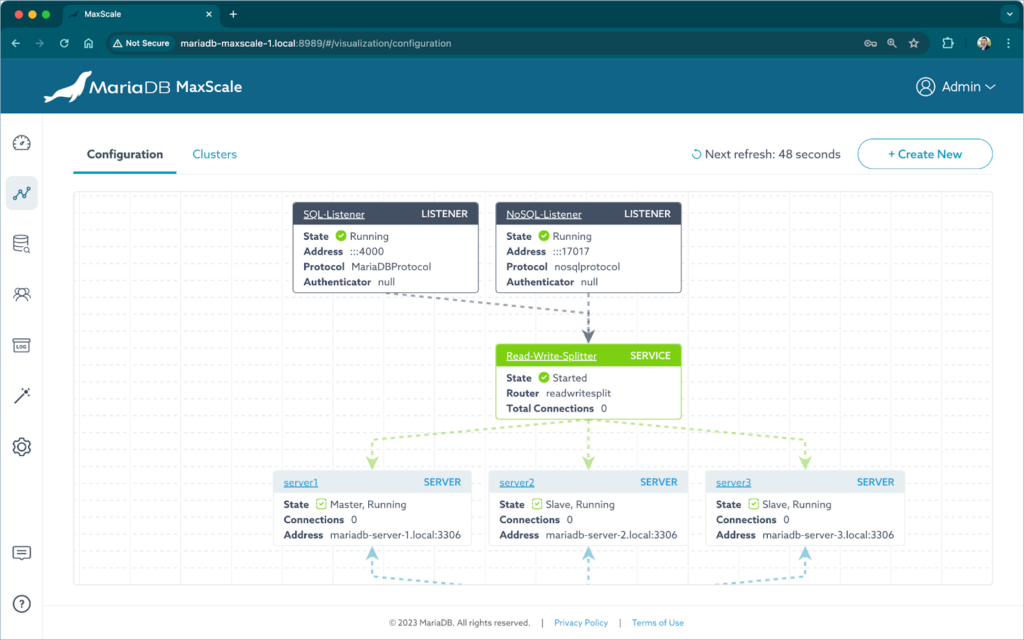
Follow this step-by-step guide to configure a MariaDB cluster with three server nodes fronted by a MaxScale [database proxy](https://www.youtube.com/watch?v=hAQNmZak4bA). You will learn how to connect to this cluster using popular tools such as the command line, Visual Studio Code, and DBeaver. Additionally, this guide includes resources to connect your Java, Python, and JavaScript/Node.js applications for development and testing purposes.
### Setting up the MariaDB Cluster
Follow the instructions to set up a MariaDB cluster with 3 server nodes and one database proxy.
#### Download the files
To make it easy, I have prepared shell scripts and configuration files to install and configure MariaDB Community Server and MariaDB MaxScale. The scripts have comments explaining everything so you can change things such as passwords. Feel free to adjust accordingly.
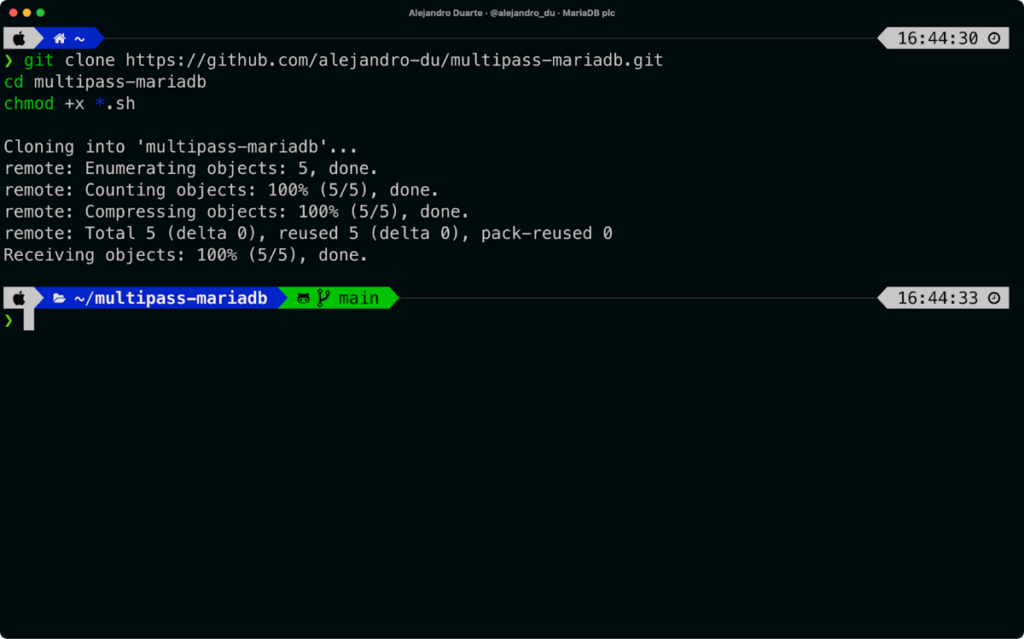
Download the files from [GitHub](https://github.com/alejandro-du/multipass-mariadb), and make the script files executable:
```
git clone https://github.com/alejandro-du/multipass-mariadb.git
cd multipass-mariadb
chmod +x *.sh
```
#### Creating the Virtual Machines
Download and install Canonical Multipass. You’ll find the instructions at [https://multipass.run](https://multipass.run/).
Find an image:
```
multipass find
```
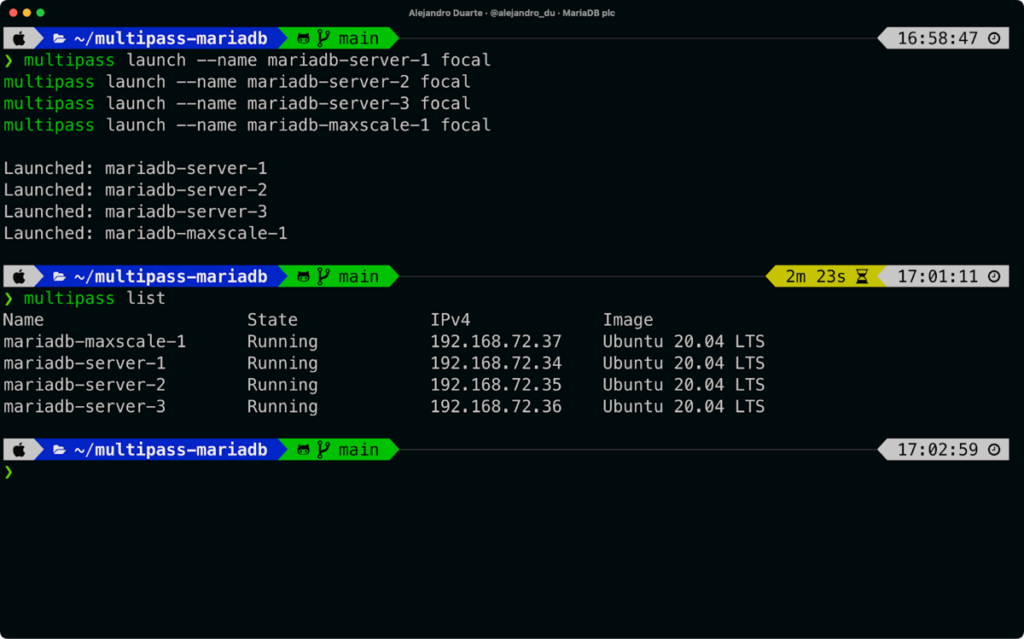
We’ll use `focal`. Create the virtual machines:
```
multipass launch --name mariadb-server-1 focal
multipass launch --name mariadb-server-2 focal
multipass launch --name mariadb-server-3 focal
multipass launch --name mariadb-maxscale-1 focal
```
Check that the instances are running correctly:
```
multipass list
```
#### Transferring the Files
Then transfer the files to the virtual machines as follows:
```
multipass transfer ./install-mariadb.sh mariadb-server-1:/home/ubuntu/
multipass transfer ./install-mariadb.sh mariadb-server-2:/home/ubuntu/
multipass transfer ./install-mariadb.sh mariadb-server-3:/home/ubuntu/
multipass transfer ./maxscale.cnf mariadb-maxscale-1:/home/ubuntu/
multipass transfer ./install-maxscale.sh mariadb-maxscale-1:/home/ubuntu/
```
#### Installing MariaDB Community Server and MaxScale
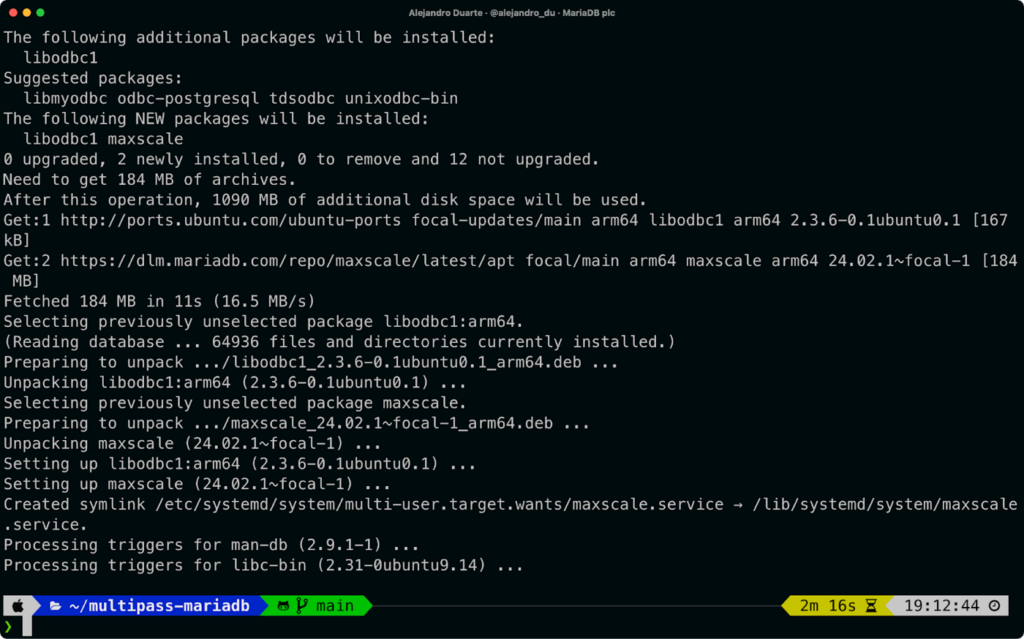
Invoke the installation scripts on each virtual machine:
```
multipass exec mariadb-server-1 -- ./install-mariadb.sh
multipass exec mariadb-server-2 -- ./install-mariadb.sh
multipass exec mariadb-server-3 -- ./install-mariadb.sh
multipass exec mariadb-maxscale-1 -- ./install-maxscale.sh
```
MaxScale can be replicated with [automatic configuration synchronization](https://staging-mdb.com/kb/en/mariadb-maxscale-2402-maxscale-2402-mariadb-maxscale-configuration-guide/#configuration-synchronization), but we’ll leave that out of the scope of this guide.
### Connecting to the MariaDB Cluster
You can connect to the MariaDB cluster through the MaxScale database proxy using several tools and programming languages. The following sections describe some of them.
#### Connecting to MariaDB Using the MaxScale Web GUI
MaxScale includes a [web-based GUI](https://staging-mdb.com/kb/en/mariadb-maxscale-2402-maxscale-2402-using-maxgui-tutorial/) that you can use to configure the database proxy itself, monitor, query individual database servers, and send SQL queries through the MaxScale SQL listener (performing automatic[ read/write splitting](https://staging-mdb.com/resources/blog/all-about-mariadb-maxscale-database-proxy-for-read-write-splitting/)).
In your web browser, navigate to . Use the following credentials to log in:
- Username: `admin`
- Password: `mariadb`
- Database: `demo`
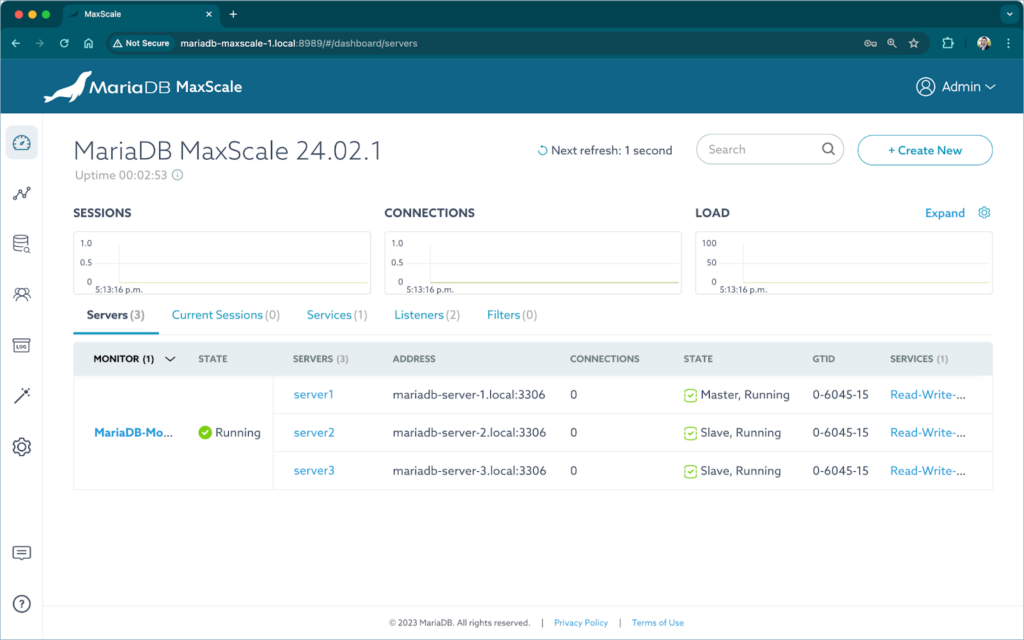
You should see a dashboard where you can monitor the servers that form the database cluster.
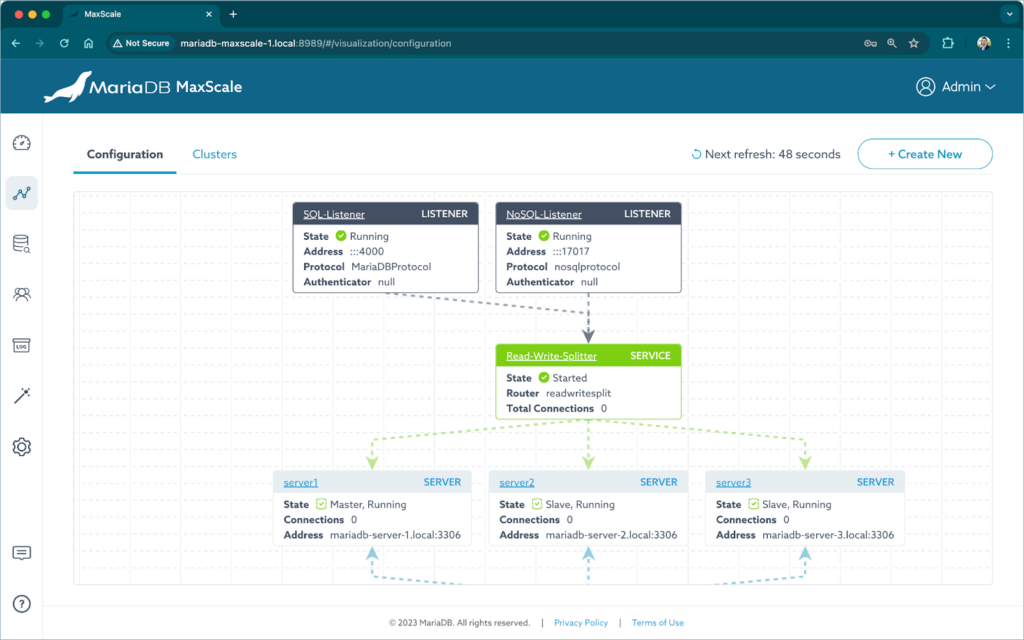
On the side menu, click on **Visualization**. The cluster is presented as a diagram.
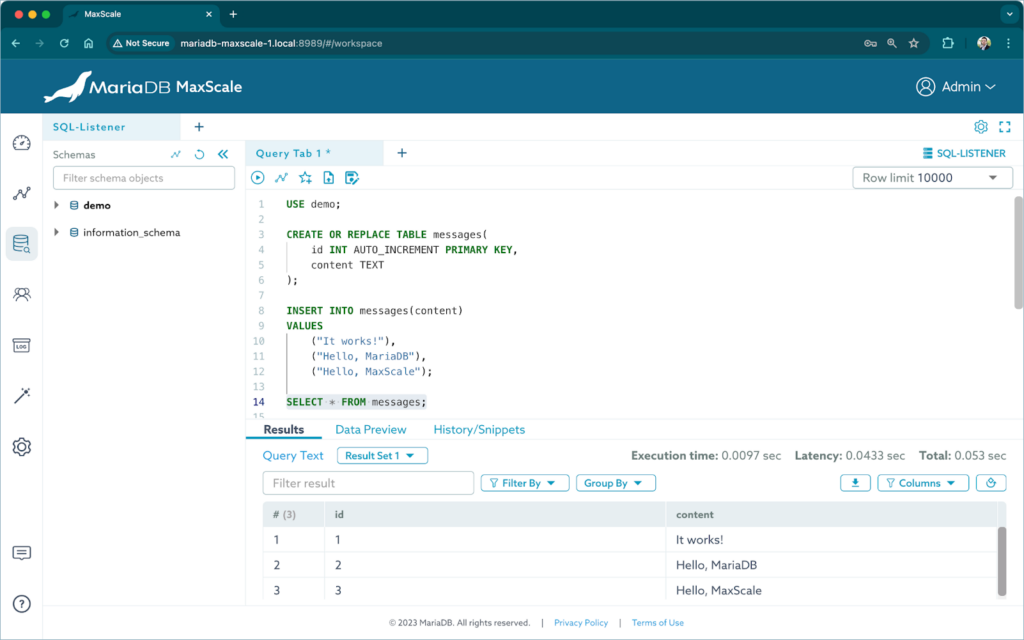
On the side menu, click on **Workspace** and select **Run Queries**. Fill in the following details and click on connect:
- Select **Listener**
- Listener **Name: SQL-Listener**
- Username: `user`
- Password: `Password123!`
Try creating a table, inserting rows, and running a query. Queries are load-balanced between `server2` and `server3`. You can check this by running the following query multiple times:
```
SELECT @@server_id;
```
You should see the server IDs of `server2` and `server3` alternate in the query results.
Writes are sent to `server1`. You can check this by inserting a few messages with the server ID:
```
INSERT INTO messages(content) VALUES(@@server_id);
INSERT INTO messages(content) VALUES(@@server_id);
INSERT INTO messages(content) VALUES(@@server_id);
```
Query the table to see that only the ID of `server1` is inserted.
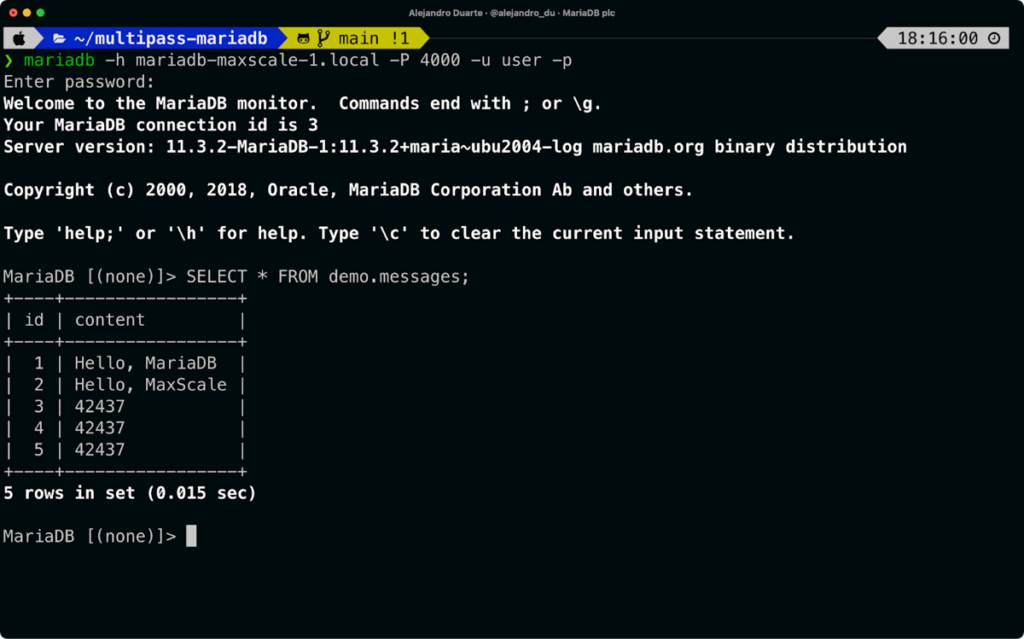
#### Connecting to MariaDB Using the Command Line
If you have installed [MariaDB](https://staging-mdb.com/downloads/) or the [MariaDB CLI tool](https://staging-mdb.com/docs/server/connect/clients/mariadb-client/), you can connect to the cluster through the SQL listener from your host machine as follows (introduce the password—`Password123!`— when asked):
```
mariadb -h mariadb-maxscale-1.local -P 4000 -u user -p
```
#### Connecting to MariaDB Using VS Code
To connect to the cluster using VS Code, you need a MariaDB-compatible client extension like [Database Client](https://marketplace.visualstudio.com/items?itemName=cweijan.vscode-database-client2). Create a new connection using the following parameters:
- Select **MariaDB**
- Host: `mariadb-maxscale-1.local`
- Port: `4000`
- Username: `user`
- Password: `Password123!`
- Database: `demo`

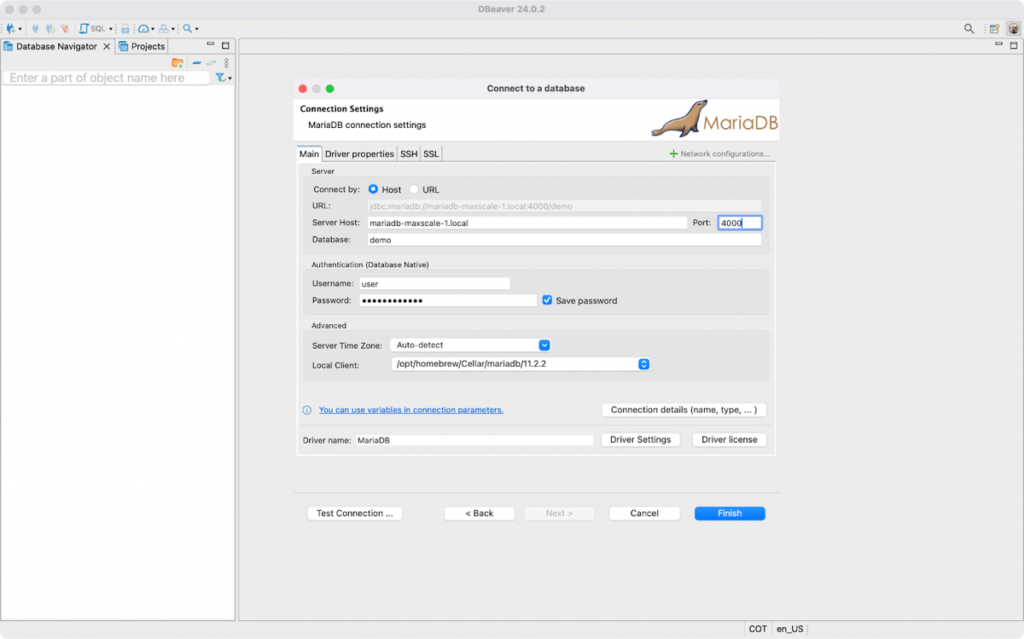
#### Connecting to MariaDB Using DBeaver
To connect to the cluster using DBeaver, create a new connection and set the following parameters:
- Select **MariaDB**
- Server Host: `mariadb-maxscale-1.local`
- Port: `4000`
- Database: `demo`
- Username: `user`
- Password: `Password123!`
#### Connecting to MariaDB Using Java
In short, to connect to the database cluster from Java, you have to use a JDBC connection string like the following:
```
jdbc:mariadb://mariadb-maxscale-1.local:4000/demo
```
You have to configure the database user (`user`) and password (`Password123!`) as well. See the examples at .
#### Connecting to MariaDB Using Python
In short, to connect to the database cluster from Python, you have to `import mariadb` and create a connection object:
```
conn = mariadb.connect(
host="mariadb-maxscale-1.local",
port=4000,
user="user",
password="Password123!",
autocommit=True
)
```
See the example at .
#### Connecting to MariaDB Using JavaScript/Node.js
In short, you have import the `mariadb` module, and create a connection object:
```
conn = await mariadb.createConnection({
host: 'mariadb-maxscale-1.local',
port: 4000',
user: 'user',
password: 'Password123!',
});
```
See the example at .
### What’s Next?
Now that you have a MariaDB cluster for testing and development try out some of the most interesting features of MaxScale.
#### Automatic Failover
Connect your application to the MariaDB cluster. Experiment with high availability (HA) by stopping a server. For example, try stopping the primary server and see how your application continues to work after MaxScale performs [automatic failover](https://staging-mdb.com/kb/en/mariadb-maxscale-24-automatic-failover-with-mariadb-monitor/) picking a replica and configuring it as the new primary (check the result in the MaxScale dashboard):
```
multipass stop mariadb-server-1
```
Start the server to see how the server automatically joins as a replica:
```
multipass start mariadb-server-1
```
If you want to try an online store simulator (implemented with Java, [R2DBC](https://go.mariadb.com/22Q2-WBN-GLBL-OSSG-DEV-Reactive-Programming-2022-02-24_Registration-LP.html?utm_source=blog&utm_medium=website), and Svelte) that connects to this database cluster, check [this article](https://programmingbrain.com/2024/03/high-availability-and-resiliency-with-maxscale).
#### Manual Switchover
Perform a manual primary switchover. In the MaxScale dashboard, click on **MariaDB-Monitor**. Mouse hover on **MASTER** and click the pencil icon. Select **server1** and click on **Swap** to make server1 the new primary server.
#### Transaction replay
Try the [transaction replay](https://staging-mdb.com/kb/en/mariadb-maxscale-2402-maxscale-2402-readwritesplit/#transaction_replay) feature of MaxScale. Any in-flight transactions in a failing node are automatically replayed in a promoted server preventing your app from crashing or having to deal with errors. Stop the primary server (check the MaxScale dashboard to see the current primary) and immediately send a write through your app. You shouldn’t get errors and the transaction should complete successfully.
#### NoSQL Queries
[Try the NoSQL listener](https://staging-mdb.com/resources/blog/mixing-sql-and-nosql-with-mariadb-and-mongodb/). Connect a MongoDB app to the MariaDB cluster (port `17017`) and use [JSON functions](https://staging-mdb.com/kb/en/json-functions/) to mix relational and JSON documents in a [single SQL query](https://www.youtube.com/watch?v=MyZhH4SX458).
### Learn more
MaxScale is a central piece in production-ready [MariaDB deployments](https://staging-mdb.com/docs/server/deploy/). [Explore](https://staging-mdb.com/kb/en/mariadb-maxscale-2402-maxscale-2402-contents/) the options and [let us know what you think](https://r.mariadb.com/join-community-slack)! Also, check my upcoming book, [MariaDB for Developers](https://mariadbfordevelopers.com/), and get an update when the book becomes available.